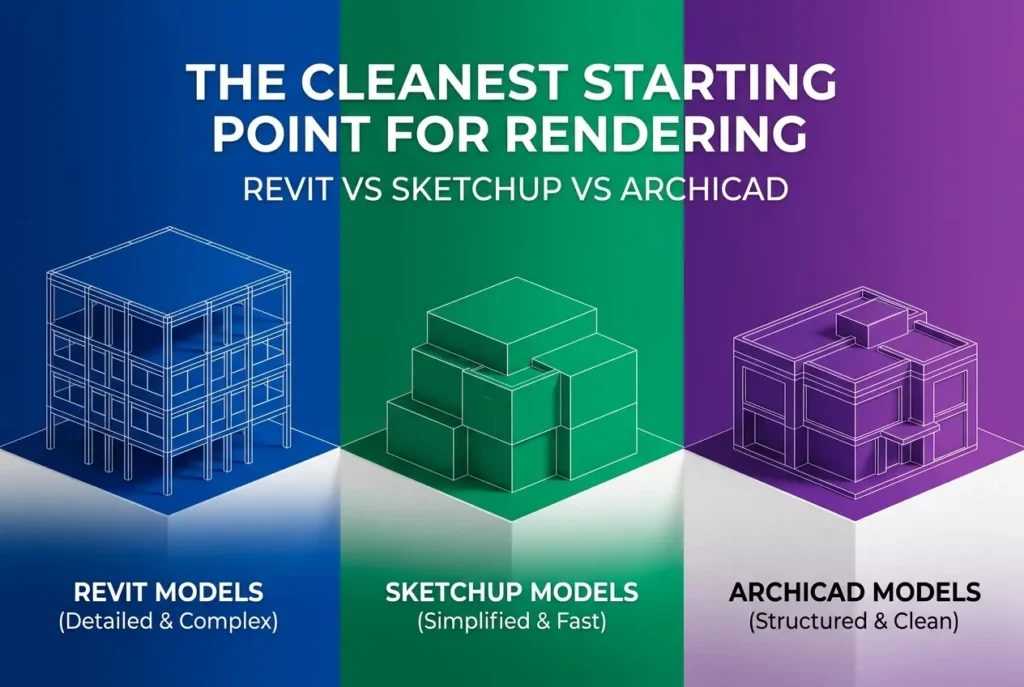
Every rendering studio has a story about opening a client file and wincing. Revit vs SketchUp vs ArchiCAD Models: Which Source Files Give Rendering Studios the Cleanest Starting Point is a question we get asked often, and the honest answer is that no software wins outright. What matters is how the model was built, how it’s exported, and whether anyone thought about downstream use before sending it over.
That said, each platform has predictable strengths and predictable problems. After years of receiving files from architects across several continents, we know which issues show up in which software, and which ones cost the most time. This post walks through what we actually see when a model lands in our studio.
If you’re an architect or developer deciding what to send, or which tool to standardise on, this should help you hand over a file that gets you a better image faster.
What “Clean” Actually Means to a Rendering Studio
A clean source file isn’t necessarily a beautiful or detailed one. It’s a file that translates into our rendering pipeline (usually 3ds Max with V-Ray or Corona, or Unreal Engine for real-time work) without surprises. In practice that means:
- Sensible geometry: no duplicate faces, no flipped normals, no overlapping solids fighting for the same space.
- Correct scale and origin: the model sits near world origin and is in real-world units.
- Organised layers or categories: we can isolate glazing, structure, and finishes quickly.
- Logical material assignment: surfaces that need different materials are actually separate or separately assigned.
- Reasonable polygon weight: detail where the camera sees it, not everywhere.
Keep these in mind, because every platform below can meet or miss them depending on the modeller.
Revit Models: Rich Data, Heavy Baggage
Revit is the default for large commercial and residential projects, and it’s the one we see most. Its strength is that the model is built from real building components: walls with layers, floors with thickness, doors and windows as families. Geometry is dimensionally accurate, and levels and grids give us a reliable structure.
The trouble is that Revit models are built for construction documentation, not for visualisation. Common issues:
- Over-modelled elements. MEP, rebar, structural connections and tiny hardware can add enormous geometry that is never visible in a render.
- Layered wall exports. A wall with six material layers can export as a single mesh or as six coincident surfaces, and either can cause z-fighting or lost materials.
- Material naming chaos. Revit’s default materials, duplicated and renamed over the years, turn into dozens of near-identical entries that tell us nothing.
- Link and workset confusion. Architectural, structural and interior models arrive separately, and aligning them takes time.
- Curtain wall complexity. Panels, mullions and grids come across as thousands of objects.
The export route matters a lot. Direct FBX export from a 3D view works well when the view is prepared properly, with unnecessary categories hidden. We also work with IFC and DWG, but FBX or the Revit-to-3ds Max workflow generally preserves materials and hierarchy best. A Revit file that was exported from a purpose-built “render” 3D view is a dream. A full-model dump is a long afternoon of cleanup.
SketchUp Models: Fast and Flexible, Variable Quality

SketchUp is the most inconsistent source we receive, in both directions. In careful hands it produces the cleanest, lightest, most render-ready geometry of the three. In careless hands it produces the worst.
Why? SketchUp is a surface modeller with almost no guardrails. Nothing stops you from leaving stray edges, reversed faces, or unsealed geometry. Typical problems we see:
- Reversed faces. Back faces showing the default white or blue colour, which break material mapping in the renderer.
- Components used inconsistently. Some repeated elements are proper components, others are exploded copies, which inflates file size and makes edits painful.
- Heavy imported 3D Warehouse content. Downloaded furniture and trees are often high-poly, badly textured, or modelled at the wrong scale.
- Texture projection issues. Materials applied with stretched or skewed UVs because the modeller only cared about how it looked in SketchUp’s viewport.
- Tiny scale or far-from-origin geometry. This causes precision glitches and jittery shading.
On the plus side, SketchUp models are usually already simplified. Designers tend to model only what they intend to show, which means we’re rarely buried in unseen detail. When the model is watertight, uses tags (layers) logically, and has materials named by purpose, it’s a very quick import. Concept-stage projects especially benefit from this lightness.
ArchiCAD Models: Elegant Structure, Export Quirks
ArchiCAD is less common in our queue than Revit, but when it appears it tends to come from firms with strong BIM discipline, and the models are usually organised. Its building elements (walls, slabs, roofs, morphs) are well-defined, and the story-based structure is tidy.
The friction mostly comes from the export step:
- Composite and complex profile handling. Complex walls and custom profiles may export with extra faces or split surfaces in odd places.
- Surface and material mapping. ArchiCAD “surfaces” don’t always translate into renderer-friendly materials. Textures can drop out or arrive with wrong scale.
- Smoothing and mesh density. Curved elements may come across faceted or overly dense depending on export settings.
- Format selection. Many firms send DWG or 3DS by default, which loses hierarchy. We generally prefer FBX, or a well-prepared Cinema 4D or Datasmith workflow where available.
ArchiCAD’s real advantage is that clean organisation is built into how the software encourages you to work. Its layer combinations and story settings make it easy to produce a stripped-down view for export. The firms that use it properly send us very tidy files.
Side-by-Side: What Each Platform Typically Gives Us
| Factor | Revit | SketchUp | ArchiCAD |
|---|---|---|---|
| Dimensional accuracy | Excellent | Depends on modeller | Excellent |
| Geometry weight | Often excessive | Usually light, sometimes bloated by imports | Moderate |
| Material transfer | Inconsistent, many duplicates | Simple but often mis-mapped | Often needs rebuilding |
| Organisation | Strong, but cluttered | Varies widely | Generally strong |
| Best export route | Prepared 3D view to FBX | Clean SKP or FBX/OBJ | FBX or Datasmith-style export |
| Main risk | Unnecessary detail | Reversed faces, stray geometry | Lost textures, split surfaces |
Revit vs SketchUp vs ArchiCAD Models: Which Source Files Give Rendering Studios the Cleanest Starting Point in Practice?
If you forced us to rank by typical outcome, we’d say a well-prepared SketchUp model is the quickest to start with, a well-prepared ArchiCAD model is the most predictable, and a well-prepared Revit model is the most accurate. The word “prepared” does all the work in that sentence. A raw Revit dump is usually our slowest start, simply because there’s so much to strip out. A careless SketchUp model can be even worse, because we can’t trust anything in it.
What we’ve found is that the software matters far less than whether the person exporting understands what a renderer needs. A junior in Revit who exports a purpose-built view will beat a senior in SketchUp who sends a file full of exploded groups every time.
What Clients Get Wrong
These are the mistakes we see repeatedly, regardless of platform:
- Sending everything. More data isn’t better. We don’t need the structural rebar, the ductwork, or the sixteen unused design options.
- Sending only a PDF set when 3D exists. Rebuilding from 2D drawings is possible, but it adds time and room for interpretation.
- Assuming materials will carry over. They rarely do perfectly. Send material specifications, reference images or sample photos alongside the model.
- Skipping a version note. If the design changed and the model didn’t, we end up rendering outdated geometry. Tell us which sheet set or date the model matches.
- Hiding unfinished areas. If part of the model is placeholder, say so. We’d rather know than spend time perfecting a wall that’s about to move.
- Relying on 3D Warehouse furniture. Generic downloaded content usually gets replaced by our own library anyway.
A Practical Handover Checklist
Whatever software you use, this short list will save time:
- Create a dedicated 3D view or layer combination for rendering and hide everything non-visible.
- Purge unused materials, components and families.
- Check that faces are oriented correctly and the model is closed where it should be.
- Confirm units and keep the model near origin.
- Name major materials by what they are, such as “exterior render white” or “oak floor”, instead of leaving defaults.
- Send the native file and a neutral export (FBX or similar), plus the key plans, elevations and sections for reference.
- Include a short note on the camera views you need, the time of day, and any design decisions still in flux.
It takes perhaps an hour to prepare a model this way, and it can save a studio many hours of cleanup, which usually means faster turnaround and fewer revision loops for you.
Conclusion
No source file format is perfect. Revit gives accuracy with excess, SketchUp gives lightness with risk, and ArchiCAD gives structure with export quirks. The cleanest starting point is whichever one has been prepared with the render in mind. If you’re not sure what state your model is in, send it over and we’ll tell you honestly what it needs before we start.
Ready to get your project visualised? Explore our contact page to share your model and talk through the best route from source file to final image.
Frequently Asked Questions
Which is cleaner for 3D rendering studios to receive: a Revit, SketchUp, or ArchiCAD model?
There is no universal winner, but SketchUp models usually import into 3ds Max, Blender, or Cinema 4D with the least friction, while Revit and ArchiCAD models tend to carry more BIM data that must be cleaned up. A well-organized Revit or ArchiCAD file offers accurate dimensions and layered or categorized geometry, but it often needs simplification before it renders efficiently. The cleanest starting point is whichever file was built with rendering in mind, with named materials, purged unused elements, and sensible geometry.
What file formats should I export from Revit, SketchUp, or ArchiCAD to send to a visualization studio?
For Revit, FBX or a 3ds Max-compatible export (via the Autodesk 3ds Max link or Datasmith for Unreal) usually works best, while ArchiCAD users commonly export FBX, Datasmith, or Cinema 4D-friendly formats. SketchUp users can send native .skp files or export FBX, OBJ, or DAE. Always ask the studio for their preferred format and include the native file plus a reference PDF or view set as backup.
Why do Revit models often cause problems like heavy polygon counts and messy materials in rendering software?
Revit models contain full BIM detail, such as MEP systems, furniture families, and detailed fixtures, that produce dense meshes and thousands of objects the renderer does not need. Material assignments are often built for documentation, so they may be generic, duplicated, or lack proper UV mapping. Studios typically spend time deleting hidden elements, merging objects, reassigning materials, and fixing UVs before rendering begins.
Are SketchUp models really easier to render, or do they have hidden issues like flipped faces and missing UVs?
SketchUp models are lightweight and simple to import, but they frequently have flipped or reversed faces, stray edges, overlapping geometry, and inconsistent component naming. Textures may be applied with projected mapping that breaks on export, and heavy use of high-poly 3D Warehouse assets can bloat the file. Running cleanup tools, checking face orientation, and purging unused materials before sending the file solves most of these issues.
How can architects prepare any BIM or 3D model to give a rendering studio the cleanest possible starting point?
Remove unneeded elements such as hidden layers, 2D annotations, MEP, and unused families or components, then purge unused materials and name the remaining ones clearly. Check geometry for gaps, overlapping surfaces, and flipped normals, and set the model to real-world units and a sensible origin point. Include a short brief with camera views, material references, and a list of any elements that should be excluded or are still in design flux.